










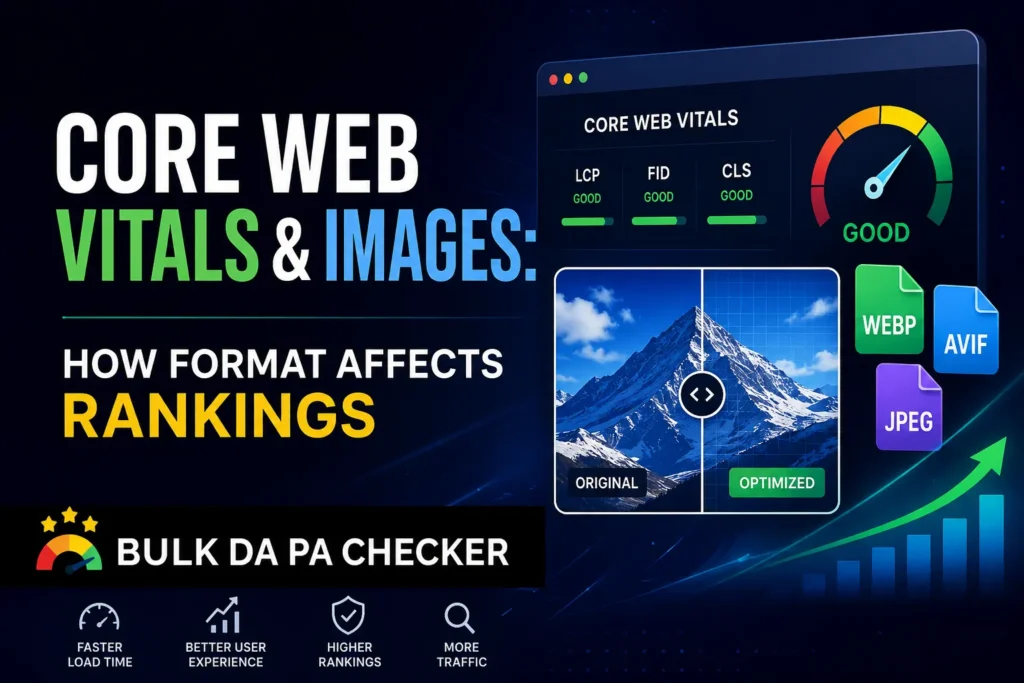
Image formats directly impact Core Web Vitals, Google’s confirmed ranking signals, by influencing page load speed, visual stability, and responsiveness. Heavy JPG or PNG files slow Largest Contentful Paint (LCP), unoptimized images without defined dimensions cause Cumulative Layout Shift (CLS), and render-blocking image requests hurt Interaction to Next Paint (INP). Switching to WebP format reduces image payload by 25–35%, producing measurable improvements in all three Core Web Vitals scores and directly supporting higher Google rankings.
In 2026, that oversight is increasingly costly. Google’s page experience signals are deeply embedded in its ranking algorithm, and image format choice sits at the center of those signals. This guide gives you a complete, actionable breakdown of exactly how image formats affect Core Web Vitals, and what to do about it today.
What Are Core Web Vitals & Why Do They Directly Affect Rankings?
Quick Answer: Core Web Vitals are a set of three specific page experience metrics that Google uses as confirmed ranking signals: Largest Contentful Paint (LCP), which measures loading performance; Interaction to Next Paint (INP), which measures responsiveness; and Cumulative Layout Shift (CLS), which measures visual stability. Pages that score “Good” on all three metrics receive a ranking boost in Google’s algorithm. Images are the primary driver of poor Core Web Vitals scores on most websites, making image optimization the fastest path to improving these signals.
Google introduced Core Web Vitals as ranking signals because they measure real user experience, not just technical performance in isolation. A page that loads slowly, shifts unexpectedly, or responds sluggishly to user input creates a poor experience that Google actively penalizes in search rankings.
The Three Core Web Vitals in 2026:
| Metric | What It Measures | Good Score | Primary Image Impact |
|---|---|---|---|
| LCP | Loading performance — how fast main content loads | Under 2.5s | Large, unoptimized images delay LCP directly |
| INP | Responsiveness — how fast page reacts to input | Under 200ms | Heavy image scripts block interaction responses |
| CLS | Visual stability — how much layout shifts during load | Under 0.1 | Images without defined dimensions cause layout shifts |
According to Google’s Core Web Vitals documentation, these three metrics represent the most impactful factors for real-world page experience — and images are implicated in all three.
How Images Directly Impact LCP, INP & CLS Scores
Quick Answer: Images impact all three Core Web Vitals metrics simultaneously. For LCP, large unoptimized images are the most common cause of slow loading scores, the hero image or largest above-the-fold element is frequently the LCP element Google measures. For CLS, images without explicitly declared width and height attributes cause browser layout shifts as they load. For INP, excessive image-related JavaScript and render-blocking resources delay the browser’s ability to respond to user interactions quickly.
Images & LCP — The Most Direct Connection
The LCP element, the largest visible content block above the fold, is an image on the majority of web pages. Hero images, banner graphics, and featured product photos are all common LCP elements.
When that image is a heavy, unoptimized JPG or PNG file served without compression:
- The browser must download significantly more data before rendering
- Time to First Byte (TTFB) and resource load time both increase
- LCP score deteriorates — often pushing pages from “Good” into “Needs Improvement” or “Poor”
The direct fix: Convert your LCP image to WebP, preload it using <link rel="preload">, and ensure it’s served at the correct dimensions for the device.
Images & CLS — The Hidden Ranking Killer
CLS measures how much your page layout shifts unexpectedly during loading. Images without a defined width and height Attributes in their HTML are the single most common cause of high CLS scores.
When a browser loads an image without knowing its dimensions in advance, it can’t reserve the correct space in the layout. The image loads and pushes other content down, creating a visible, jarring shift that Google measures as a negative user experience signal.
The direct fix: Always declare explicit width and height attributes on every <img> tag, even for responsive images. Use CSS aspect-ratio as a modern complement for fluid layouts.
Images & INP — The Less Obvious Connection
INP replaced First Input Delay (FID) as a Core Web Vitals metric in 2024 and remains a key signal in 2026. While images don’t block interactions directly, excessive image-related JavaScript, lazy loading scripts, image carousel libraries, and lightbox plugins can contribute to main thread congestion that delays interaction responses.
The direct fix: Use native browser lazy loading (loading="lazy"Instead of JavaScript-based solutions, audit third-party image scripts for unnecessary main thread blocking.
How Image Format Choice Directly Affects Core Web Vitals
Quick Answer: Image format is one of the most impactful variables in Core Web Vitals performance. WebP files are 25–35% smaller than equivalent JPG files and up to 26% smaller than PNG files — meaning less data for the browser to download, faster LCP times, and better overall PageSpeed scores. Google PageSpeed Insights explicitly flags JPG and PNG images as optimization opportunities and recommends next-generation formats like WebP as a primary fix for poor LCP scores.
Here’s the direct performance impact of format choice on Core Web Vitals:
WebP vs JPG vs PNG — Core Web Vitals Impact:
WebP:
- ✅ Smallest file size at equivalent quality — fastest LCP times
- ✅ Passes Google PageSpeed “Serve images in next-gen formats” audit
- ✅ Supports transparency — replaces PNG without file size penalty
- ✅ Supports both lossy and lossless — covers all use cases
- ✅ 97%+ global browser support in 2026 — no compatibility barrier
JPG:
- ⚠️ 25–35% larger than WebP equivalents — slower LCP
- ⚠️ Flagged by Google PageSpeed Insights as a format to replace
- ❌ No transparency support
- ✅ Still acceptable as a fallback for legacy environments
PNG:
- ❌ Significantly larger files than WebP for photographic content
- ❌ Major LCP performance liability when used for hero images or banners
- ✅ Correct choice only for lossless graphics in non-web-delivery contexts
- ⚠️ Should be replaced with WebP for all web-delivered images in 2026
The conclusion is unambiguous: WebP is the correct format for Core Web Vitals optimization in 2026. If you’re still serving JPG or PNG images across your website, you’re carrying an avoidable performance penalty on every page load.
Convert your existing image library to WebP instantly using the bulk WebP image converter at bulkdapa, process multiple files simultaneously without any software installation.
Image Lazy Loading & Page Experience Signals
Quick Answer: Lazy loading defers the loading of off-screen images until the user scrolls near them, reducing initial page weight and improving LCP by ensuring the browser focuses resources on above-the-fold content first. Native HTML lazy loading using the loading=”lazy” attribute is the recommended approach in 2026, as it requires no JavaScript, adds no main thread overhead, and is supported by all major browsers. Never apply lazy loading to your LCP image, it will delay the metric Google measures most directly.
Lazy Loading Best Practices for 2026:
- Apply
loading="lazy"to all images that appear below the fold - Never lazy-load your LCP element — this is a critical and common mistake that directly worsens your most important Core Web Vitals score
- Use
loading="eager"or no loading attribute on above-the-fold images - Combine with
fetchpriority="high"on your LCP image to tell the browser to prioritize its download - Avoid JavaScript lazy loading libraries — native browser lazy loading is faster, lighter, and more reliable in 2026
<!-- LCP image — eager load + high fetch priority -->
<img src="hero-image.webp" alt="SEO dashboard overview"
     width="1200" height="600" fetchpriority="high">

<!-- Below-fold images — lazy load -->
<img src="blog-thumbnail.webp" alt="Content marketing strategy guide"
     width="800" height="450" loading="lazy">
Image Dimensions, Responsive Images & CLS Prevention
Quick Answer: Preventing Cumulative Layout Shift from images requires two things: declaring explicit width and height attributes on every image element, and serving correctly sized images for each device using responsive image techniques. When browsers know image dimensions in advance, they reserve the correct space in the layout before the image loads, eliminating the layout shift that damages CLS scores. Responsive images using srcset ensure users on mobile devices don’t download unnecessarily large desktop-sized image files.
CLS Prevention Checklist:
- ✅ Always declare
widthandheighton every<img>tag — even responsive images - ✅ Use
aspect-ratioCSS for fluid responsive layouts that still reserve correct space - ✅ Implement
srcsetandsizesto serve device-appropriate image dimensions - ✅ Never use CSS
height: autowithout a corresponding aspect-ratio reservation - ✅ Test with real devices — CLS issues often only appear on mobile where layout reflows differently
<!-- Responsive image with CLS prevention -->
<img src="product-image.webp"
     srcset="product-image-400.webp 400w, product-image-800.webp 800w, product-image-1200.webp 1200w"
     sizes="(max-width: 600px) 400px, (max-width: 1000px) 800px, 1200px"
     width="1200" height="800"
     alt="Premium SEO audit dashboard interface"
     loading="lazy">
How to Audit & Fix Image-Related Core Web Vitals Issues
Quick Answer: To audit image-related Core Web Vitals issues, run your pages through Google PageSpeed Insights and Google Search Console’s Core Web Vitals report. PageSpeed Insights identifies your LCP element, flags unoptimized image formats, highlights missing dimension attributes, and quantifies the potential savings from each fix. Google Search Console’s Core Web Vitals report shows which URLs on your site have Poor or Needs Improvement scores at scale, letting you prioritize the highest-traffic pages first.
Step-by-Step Image Core Web Vitals Audit:
Step 1: Identify Your LCP Element. Run your page through Google PageSpeed Insights and identify which element Google measures as your LCP. If it’s an image — which it is on most pages — that image is your highest-priority optimization target.
Step 2: Check Image Format Is your LCP image served as JPG or PNG? Convert it to WebP immediately using the free bulk WebP image converter, this single change frequently produces the largest LCP improvement of any optimization.
Step 3: Audit for Missing Dimensions. Use Screaming Frog or Chrome DevTools to identify images missing width and height attributes — these are your CLS risks. Add explicit dimensions to every flagged image.
Step 4: Review Lazy Loading Implementation. Confirm your LCP image is NOT lazy loaded. Verify all the images have been loading="lazy" applied. Check for unnecessary JavaScript lazy loading libraries that can be replaced with native HTML attributes.
Step 5: Check Image Sizing. Are you serving 2000px-wide images to mobile users? Use srcset to serve device-appropriate sizes. Google PageSpeed Insights flags “Properly size images” as a specific audit, address every flagged URL.
Step 6: Monitor at Scale. Use Google Search Console’s Core Web Vitals report to identify all URLs with Poor scores. Prioritize pages by organic traffic volume, fix high-traffic pages first for maximum ranking impact.
To track how your Core Web Vitals improvements translate into Domain Authority and ranking gains over time, check your domain authority free, monitor DA, PA, and spam score as your technical optimizations compound.
Quick Wins Checklist: Image Optimization for Core Web Vitals in 2026
Use this as your standard pre-publish and site audit checklist:
- ✅ All images converted to WebP format
- ✅ LCP image identified, converted to WebP, and preloaded with
fetchpriority="high" - ✅ LCP image is NOT lazy loaded
- ✅ All below-fold images have
loading="lazy"applied - ✅ Every
<img>tag has explicitwidthandheightattributes declared - ✅ Responsive
srcsetimplemented for images appearing at different sizes across devices - ✅ No JavaScript-based lazy loading libraries replacing native HTML attributes
- ✅ Image file sizes audited — no image over 150KB for standard web delivery
- ✅ Alt text present and optimized on every non-decorative image
- ✅ Google PageSpeed Insights run and all image-related audits addressed
- ✅ Core Web Vitals report in Google Search Console showing no “Poor” URLs
FAQs
Does image format directly affect Google rankings?
Yes, indirectly but measurably. Image format affects Core Web Vitals scores, particularly LCP, which is a confirmed Google ranking signal. Pages with better Core Web Vitals scores receive a ranking advantage over comparable pages with poor scores.
What is the most common image-related Core Web Vitals issue?
A slow LCP caused by a large, unoptimized hero image served in JPG or PNG format without preloading. Converting the LCP image to WebP and adding fetchpriority="high" is the single highest-impact image optimization available for most websites.
Can fixing image Core Web Vitals issues improve my rankings?
Yes — particularly in competitive niches where ranking factors are otherwise closely matched between competing pages. Core Web Vitals serve as a tiebreaker signal. Consistent improvement across LCP, INP, and CLS can shift rankings meaningfully over 4–8 weeks.
How do I convert my images to WebP without technical expertise?
Use the bulk WebP image converter at bulkdapa.site — upload multiple JPG or PNG files, convert them to optimized WebP instantly, and download results ready for immediate deployment. No software or technical setup required.
How do I monitor Core Web Vitals improvements over time?
Use Google Search Console’s Core Web Vitals report for field data and Google PageSpeed Insights for lab data. Combine with regular domain authority monitoring using the free SEO tools at BulkDAPAChecker to track how technical improvements compound into broader ranking gains.