







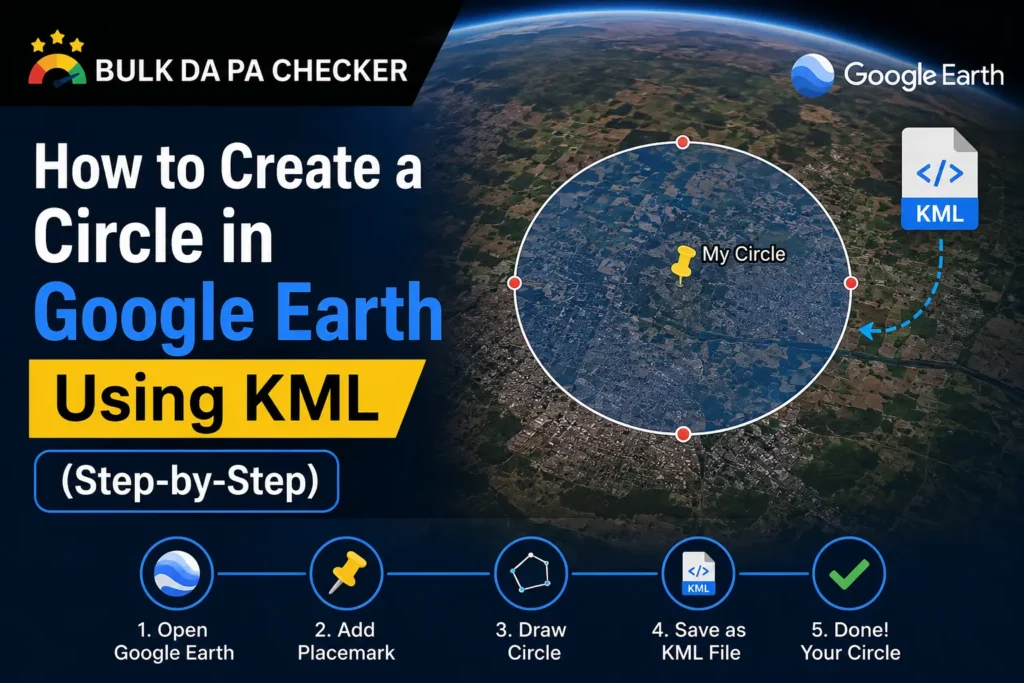
Drawing a perfect circle in Google Earth sounds like it should be a built-in shape tool, but the native interface only offers freehand polygons and paths. Getting an actual mathematically accurate circle requires either careful manual point placement or generating the KML code directly, which is far more reliable.
Why Google Earth Doesn’t Have a Native Circle Tool
Google Earth’s built-in drawing tools create polygons by manually placing points, which makes a perfectly round circle nearly impossible to draw by hand with any precision. A true circle in KML is actually built as a polygon with many small straight segments arranged around a center point at an equal radius, simulating a smooth curve.
This is why the cleanest way to get an accurate circle is generating the underlying KML coordinates mathematically rather than trying to trace one freehand.
The Manual Method: Placing Points by Hand
You can approximate a circle in Google Earth by adding a new polygon and manually placing points in a roughly circular pattern around your target location. This method is quick but imprecise, usually producing a lumpy or uneven shape unless you place a large number of points very carefully.
From experience, I almost never recommend this method to clients beyond a rough visual mockup, since the resulting shape rarely holds up well once zoomed in, especially for anything representing an actual service radius that needs to look professional.
The Math Behind an Accurate KML Circle
An accurate circle in KML is generated by calculating a series of latitude and longitude points at an equal distance, the radius, from a center coordinate, spaced evenly around 360 degrees. More points produce a smoother-looking circle, with 36 to 72 points typically enough to look perfectly round at normal map zoom levels.
This calculation accounts for the earth’s curvature, since a fixed radius in meters translates to a slightly different number of degrees of longitude depending on how far from the equator the center point sits.
Generating the Circle Without Writing the Math Yourself
Rather than calculating coordinate points manually, a KML circle generator takes a center address or coordinate and a radius distance, then outputs a ready-to-use KML file with the polygon points already calculated correctly. This removes the math entirely and produces a clean, accurate circle every time.
Our KML Circle Generator does exactly this, taking a center point and radius and generating a polygon file ready to drop straight into Google Earth or Google My Maps.
Importing Your Circle into Google Earth
Once you have a KML file containing your circle, open Google Earth, use the File menu to select Open, and browse to the saved KML file. The circle will appear on the map immediately at the correct location and size, ready for further styling like color or transparency adjustments.
- Generate or save your circle as a KML file
- Open Google Earth on desktop or web
- Use File, then Open, and select your KML file
- Adjust fill color, line color, or transparency if needed
Common Use Cases for a Service Area Circle
Service area circles are commonly used by local businesses to visually define a delivery zone, a service coverage radius for home services, or a catchment area for a brick-and-mortar location. They are also frequently embedded directly on a website or Google Business Profile to give visitors a clear picture of coverage.
From experience, local service businesses that add a visible coverage map to their website tend to get fewer out-of-area inquiries, since visitors can immediately see whether their location falls inside the service zone before reaching out.
Frequently Asked Questions
Can I make a circle with a specific radius in miles or kilometers?
Yes, a KML circle generator typically lets you specify the radius in either unit and converts it to the correct coordinate math automatically.
Will my circle look distorted at different zoom levels?
A properly calculated circle with enough points stays visually round at most reasonable zoom levels, though extreme zoom can reveal the underlying polygon segments.
Can I edit the circle’s color and transparency after importing it?
Yes, Google Earth lets you adjust the style of any imported polygon, including fill color, line color, and opacity, after the shape is on the map.
Does the circle account for the earth’s curvature?
A properly generated circle does account for this, adjusting the longitude spacing based on the latitude of the center point.
Can I embed this circle directly on my website, not just Google Earth?
Yes, the same KML file or its coordinates can be used in a web-based map embed, depending on which mapping library your site uses.
Generate Your Service Area Circle in Seconds
Our KML Circle Generator builds an accurate, ready-to-import circle from any center point and radius. Browse our full suite of SEO tools for more free utilities built for local businesses, or check our SEO blog for more guides on local SEO and mapping.