









WordPress generates a virtual robots.txt automatically if you never create a physical one, and most site owners have no idea what is in it. That default file is usually fine for a small blog, but anyone running WooCommerce, membership plugins, or a large content library needs more control than the default gives them.
Where WordPress Hides Its Default Robots.txt
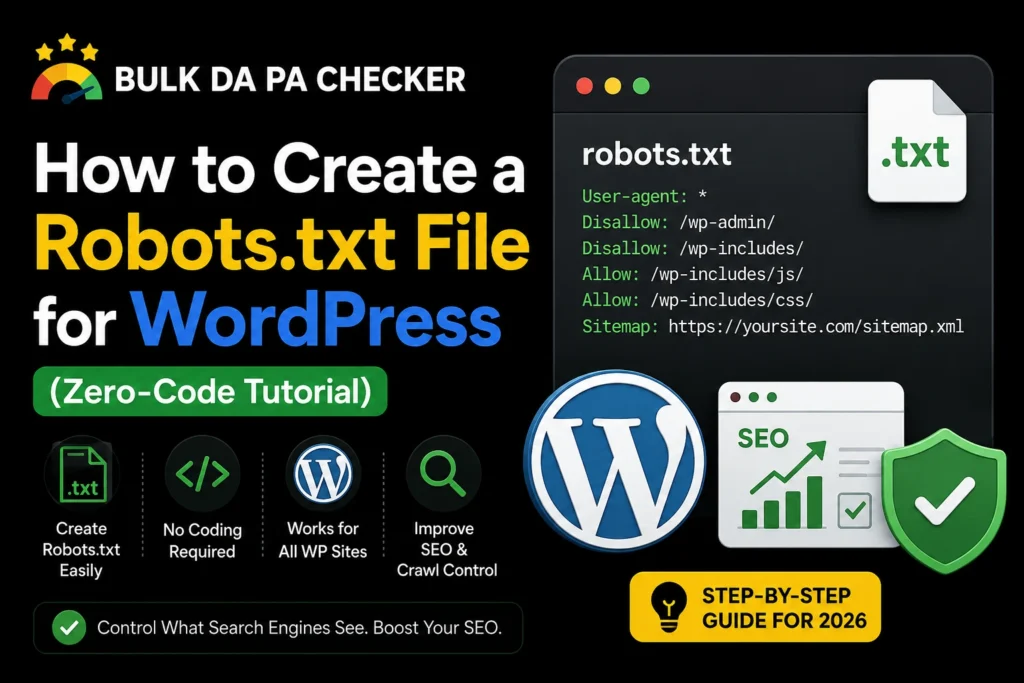
WordPress generates a virtual robots.txt at yoursite.com/robots.txt even without a physical file in the root directory. This default version typically blocks /wp-admin/ while allowing admin-ajax.php, and it disappears the moment you upload a real robots.txt file to override it.
You can see this default by visiting your own site’s robots.txt path directly in a browser. If you have never touched it, what you see is WordPress core’s built-in version, not something a plugin or developer configured.
Editing Robots.txt Through an SEO Plugin
Most major WordPress SEO plugins, including Yoast SEO and Rank Math, include a built-in robots.txt editor under their tools settings. This is the easiest method for non-technical users since it requires no file uploads or FTP access and saves changes directly through the WordPress dashboard.
The plugin writes a physical robots.txt to the server the first time you save changes through its editor, replacing the virtual default permanently.
- Yoast SEO: Tools menu, File editor
- Rank Math: General Settings, Edit robots.txt
- All in One SEO: Tools, Robots.txt Editor
Editing Robots.txt Manually via FTP
Connect to your server with an FTP client, navigate to the root folder where wp-config.php lives, and either edit the existing robots.txt or create a new plain text file with that exact name. This method works regardless of which plugins are installed and gives full control over the raw content.
From experience, this is the route I take whenever a client’s SEO plugin editor is glitching or when I need to push an identical file across several WordPress installs at once during an agency-wide cleanup. A direct file upload removes any plugin-specific quirks from the equation.
WordPress-Specific Paths Worth Blocking
Beyond the default /wp-admin/ block, WordPress sites commonly benefit from disallowing internal search result URLs, comment reply links with tracking parameters, and admin-only feed variations. None of these paths offer search value, and blocking them helps crawlers spend more time on actual content.
User-agent: *
Disallow: /wp-admin/
Disallow: /?s=
Disallow: /search/
Allow: /wp-admin/admin-ajax.php
Sitemap: https://example.com/sitemap_index.xml
Avoid disallowing /wp-content/ as a whole folder, since that path holds the theme and plugin asset files Google needs to render pages correctly.
WooCommerce and Membership Plugin Considerations
WooCommerce stores typically benefit from blocking cart, checkout, and my-account paths in robots.txt, since these pages are user-specific and offer no SEO value. Membership and paywall plugins often generate similar account-driven URLs that are worth excluding the same way.
91% of pages get zero organic traffic from Google, according to Ahrefs, often because the pages competing for that traffic are thin, duplicate, or simply not the kind of content anyone searches for, which is exactly the category cart and account pages fall into.
If you run a WooCommerce store and want to check how your product pages are performing on authority signals at scale, our Bulk DA PA Checker handles up to 50 domains or paths in a single pass.
Testing Your Changes Without Breaking the Site
After saving any robots.txt change in WordPress, test the live file by visiting yoursite.com/robots.txt directly in a browser and then run a handful of key pages through Google Search Console’s URL Inspection tool to confirm they are not unexpectedly blocked.
From experience, the WordPress sites that get burned hardest are the ones running automated migrations or staging-to-live sync tools, where a robots.txt edited for a dev environment quietly carries over into the production push without anyone reviewing it in the deployment checklist.
Backlinks remain one of Google’s top three ranking factors, and a broken robots.txt rollout on a WordPress site can undercut months of backlink work in a single careless save. Domain Authority, the 1 to 100 Moz score built largely on those same backlink signals, is one of the easiest metrics to watch for early warning signs of a crawl problem. Always verify before moving on.
Frequently Asked Questions
Do I need a robots.txt plugin if I already use Yoast or Rank Math?
No, both plugins include a built-in robots.txt editor, so a separate dedicated plugin is unnecessary.
Will deleting my custom robots.txt bring back the WordPress default?
Yes, removing the physical file restores WordPress core’s virtual default version automatically.
Should I block /wp-includes/ in WordPress robots.txt?
Generally no, since modern WordPress core no longer needs this blocked, and some assets inside it may be required for rendering.
Can I have different robots.txt rules for a staging WordPress site?
Yes, and you should, since staging sites are usually better off fully blocked with `Disallow: /` until launch, then switched to the production ruleset.
How do I check if my WordPress robots.txt is actually live?
Visit yoursite.com/robots.txt directly in any browser. If your custom rules appear instead of the generic WordPress default, the file is live.
Build a Safer Robots.txt for Your WordPress Site
Our Robots.txt File Generator creates a WordPress-ready file from simple selections, no FTP or plugin settings required. For ongoing authority tracking across client sites, our free DA PA tool covers up to 50 domains at once, and our expert SEO consultant service can audit your full technical setup if you want a second opinion.